Trajee for motor trade professionals
Garages, used car dealers, auction buyers: Trajee saves you time on every transport, from the request prepared from a listing to the tracking link sent to your customer. This guide presents the features you will use every day.
A request from a listing or a photo
Paste the text of a listing or take a photo of an auction sale slip: Trajee fills in the request form for you. You check each field, then you publish. The text and the photo are not kept.
- Above the request form, tap “Fill in from a listing or a photo”.
- Paste the listing or take a photo, then tap “Prepare my request”.
- Check each field, pick the places from the list if any are missing, then publish.

Several vehicles in a single request
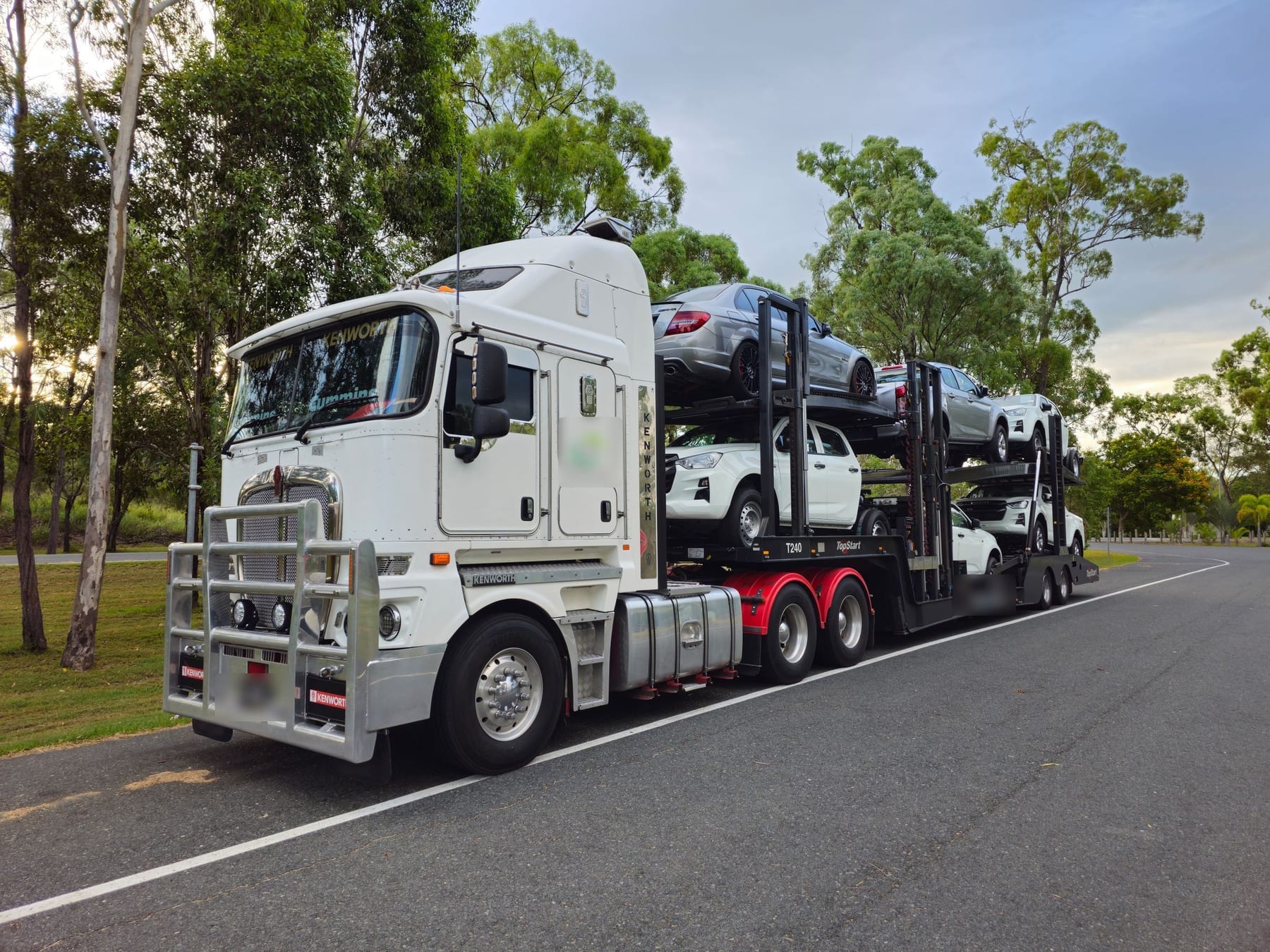
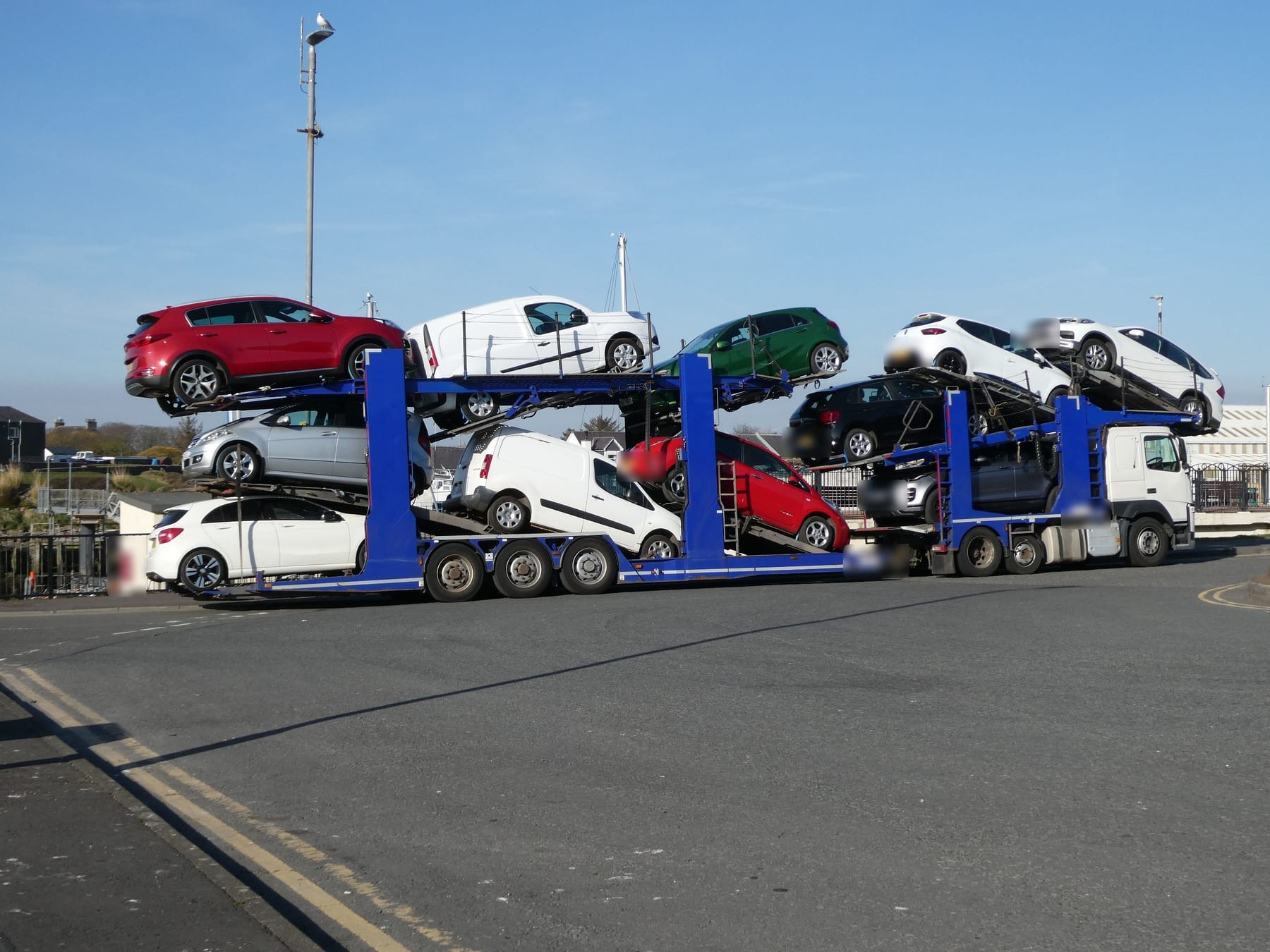
For a batch, a single request is enough. Enter the number of vehicles: the form adds a make and model line for each one, and carriers see the whole batch before giving a price.
- In the form, enter the number of vehicles.
- Under “Other vehicles”, fill in the make and model of each vehicle.
- For the next batch, “Repeat this request” takes over all the vehicles.
Your usual places in one tap
When you are signed in, you find the places from your past requests under “Collection” and “Delivery”, the most frequent first. One tap fills in the field: you have nothing to save beforehand.
- Sign in before filling in your request.
- Under “Collection” or “Delivery”, tap a place in the “Your places” row.

Your regular carriers, notified first
The verified carriers in “My carriers” are notified first of your new requests, except for urgent requests. Already working with a carrier? Send them your invitation link: they join you in one tap and you receive an email.
- Open “My carriers” from your profile.
- In “Invite my regular carrier”, share or copy your link.
- Your carrier creates their account or signs in, then accepts in one tap.

An agreed rate with your carrier
With a carrier who already works for you, set a price for a route. For the next transport, you book at that price by choosing the date, and the carrier confirms it in one tap, with no new quote to wait for.
- In “My carriers”, tap “Propose a rate”, then enter the route and the price.
- Once the rate is accepted, book at that price and choose the date.
- If the carrier does not confirm in time, open your request to all carriers.

Your vehicles in transit and the tracking link
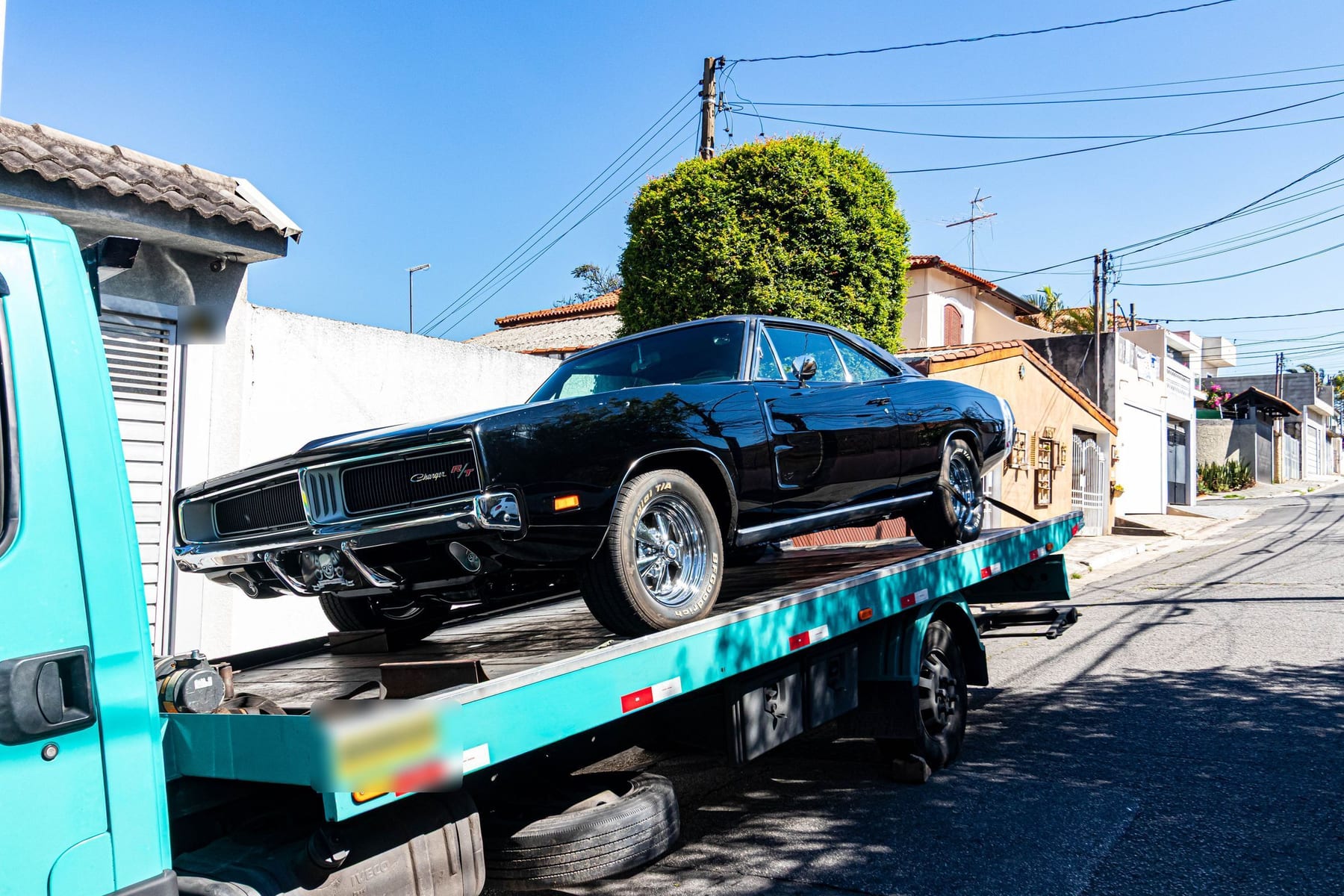
Your vehicles being transported are brought together on one page, with the status, dates, photos, signed receipts and invoice. Add your reference (plate, stock number) and send a tracking link to your customer: they see the status, dates, towns and vehicle, without the price or the carrier.
- Open “Vehicles in transit” from your profile.
- Note your reference, then copy the vehicle’s tracking link.
- “Change link” disables the old link if needed.
Follow a route
Do you often transport along the same route? Follow this route: you receive an email when a verified carrier posts a matching journey, and its button opens a request with both places already filled in.
- Search for journeys on your route, then tap “Follow this route”.
- Find or stop your routes in “My routes”, from your profile.
The usual time to the first quote
While your request is waiting for its first quote, its page shows the usual time to the first quote on your route, or across the whole site when the route has too few requests. It is an indication drawn from past requests, with no commitment.
- Publish your request.
- Open its page: the time is shown when there are enough requests to calculate it.